

Backups on AXSpace Weekly Full Backups + Daily Database Backups — How to Restore Safely
Although the responsibility for maintaining backups ultimately lies with the user, AXSpace.com provides automated backup mechanisms to reduce risk and assist in disaster recovery. These backups are designed to protect critical site data and provide recovery options in the event of data corruption, accidental deletion, failed updates, or security incidents.
AXSpace.com maintains two types of automated backups:
- Daily Database Backup
- Weekly Full Backup
Each backup serves a distinct purpose and should be used appropriately depending on the nature of the issue.
Types of Backup
Daily Database Backup
The daily backup includes only the website database from the previous day. This is particularly valuable for dynamic websites such as e-commerce platforms, membership systems, forums, or any site that processes transactions, user data, or content updates on a daily basis.
Since databases typically store:
• Orders and transactions
• User accounts
• Site settings
• Content (posts, products, comments)
Losing recent database changes can directly affect business operations. The daily database backup allows recovery of the most recent structured data without affecting site files.
Weekly Full Backup
The weekly backup includes:
- All files inside the public_html directory
• The corresponding database backup of that same date
This means the weekly backup contains a consistent snapshot of:
- Website files
• Themes and plugins
• Media uploads
• Configuration files
• Database state
It is important to understand that the weekly backup does not update every day. It is replaced only once per week, on a predefined weekday. For example, if the backup schedule runs on Mondays, the backup file will remain unchanged until the following Monday.
This creates a limitation:
You cannot restore the site to “exactly seven days ago.” You can only restore to the last scheduled backup date.
Daily Database Backup vs. Weekly Backup
It may seem redundant that both backups include a database file. However, they serve different recovery scenarios.
When restoring data, consistency between files and the database structure is critical.
For example:
- Suppose you restore last week’s database.
• However, you do not restore last week’s files.
• During the week, several plugins were removed or replaced.
• A new plugin was installed that did not exist at the time of the backup.
The restored database may contain:
- Table entries for plugins that no longer exist
• Settings for removed components
• Missing tables required by newly installed plugins
This inconsistency can result in:
- PHP errors
• Missing functionality
• Broken site sections
• Database connection or schema issues
Therefore, if a full rollback is needed, restoring both files and the database from the same date (via the weekly backup) is typically safer.
The daily database backup is best used when:
- Only database content was corrupted
• Files remain intact
• You need to recover recent structured data
The weekly backup is best used when:
- A major update failed
• Files were deleted or altered
• The entire site needs to be rolled back
AXSpace Backup Restoration
The restoration process in AXSpace differs slightly from standard hosting environments. Normally, full-site backups are provided as compressed archives (such as .zip or .tar files) that can be restored manually or through automated tools.
However, since the weekly backup system is exclusive to AXSpace.com, restoration is performed directly through the internal file management interface.
Step 1 (Accessing the Backup Data)
Both daily and weekly backups can only be accessed using the AXSpace file management tool called AXFilePro. This tool is located under the Extra Features tab within the hosting control panel.
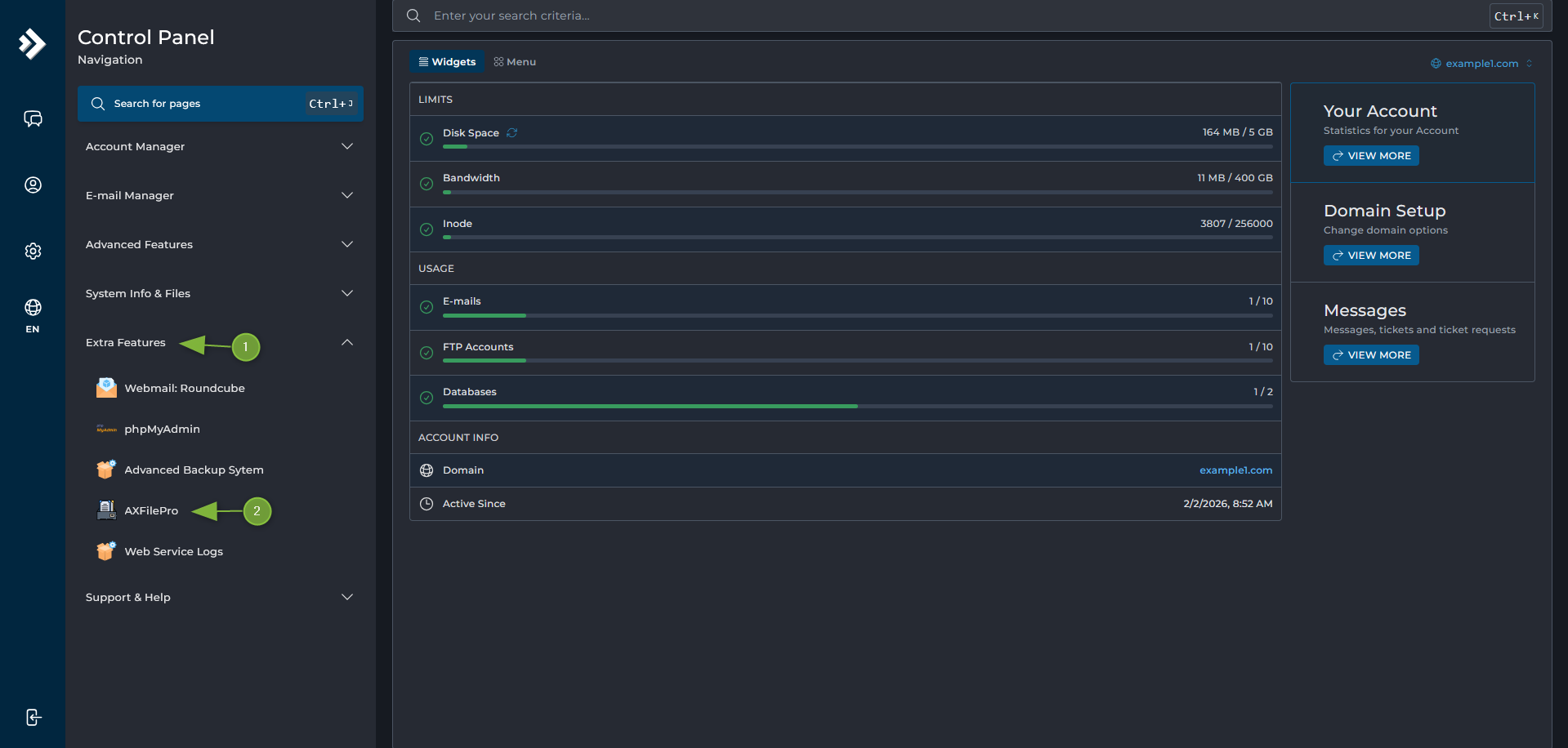
After launching AXFilePro, you will see a directory named:
mnt
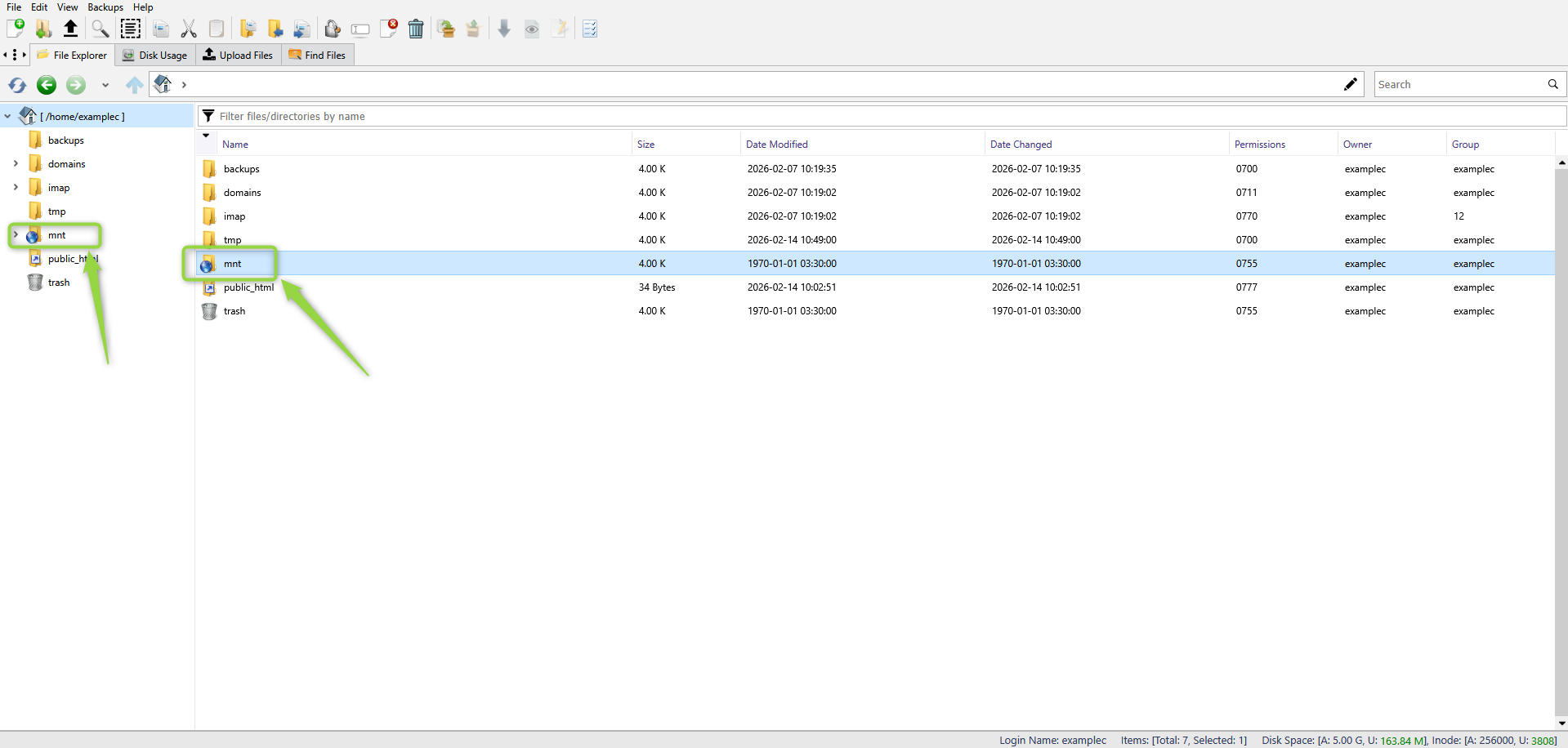
Using the sidebar or by double-clicking directories, you can navigate through the file system.
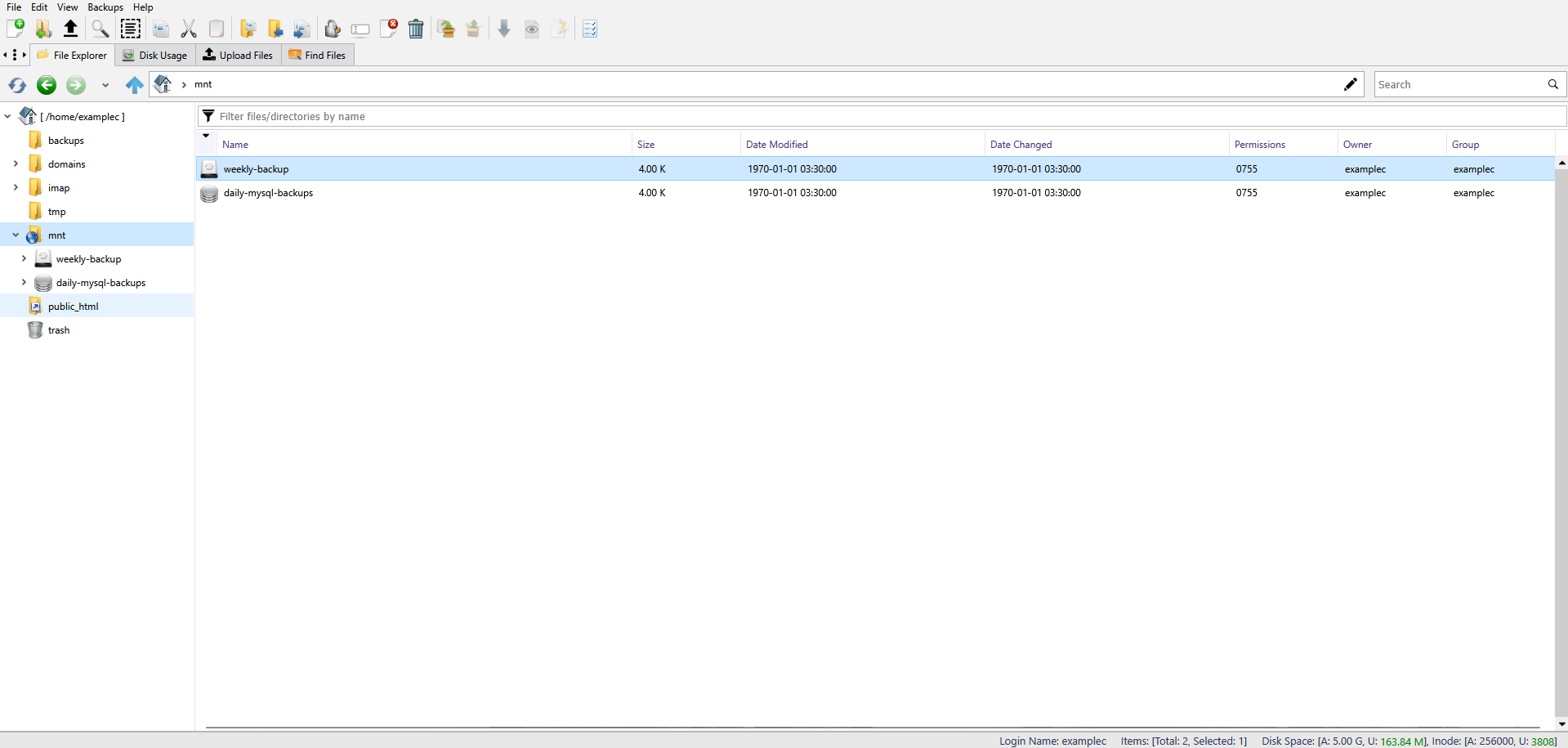
Enter the mnt directory. Inside, you will find:
- The daily database backup
• The weeklybackup directory
Step 2 (Locate the Right Data)
Before performing any restoration, carefully verify which backup is required. Incorrect restoration can overwrite current data permanently.
A) Daily Database Backup
If you only need to restore the database from the previous day:
- Enter the daily-mysql-backups directory.
- Inside, you will typically see two dated directories:
The current day
The previous day
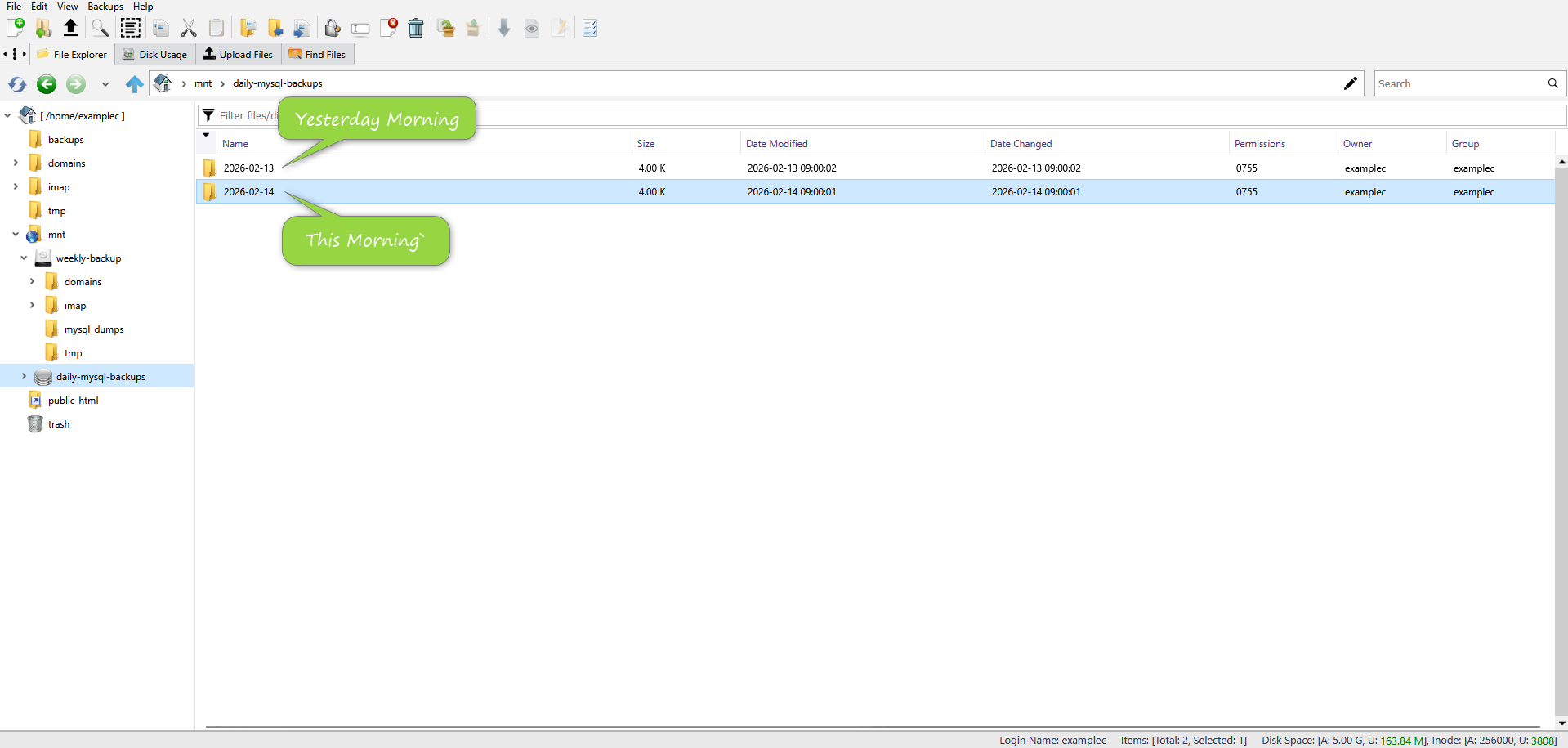
You must confirm the correct date before proceeding.
B) Weekly Backup
When entering the weekly-backup directory, you will see archived data corresponding to the home directory from the last scheduled backup.
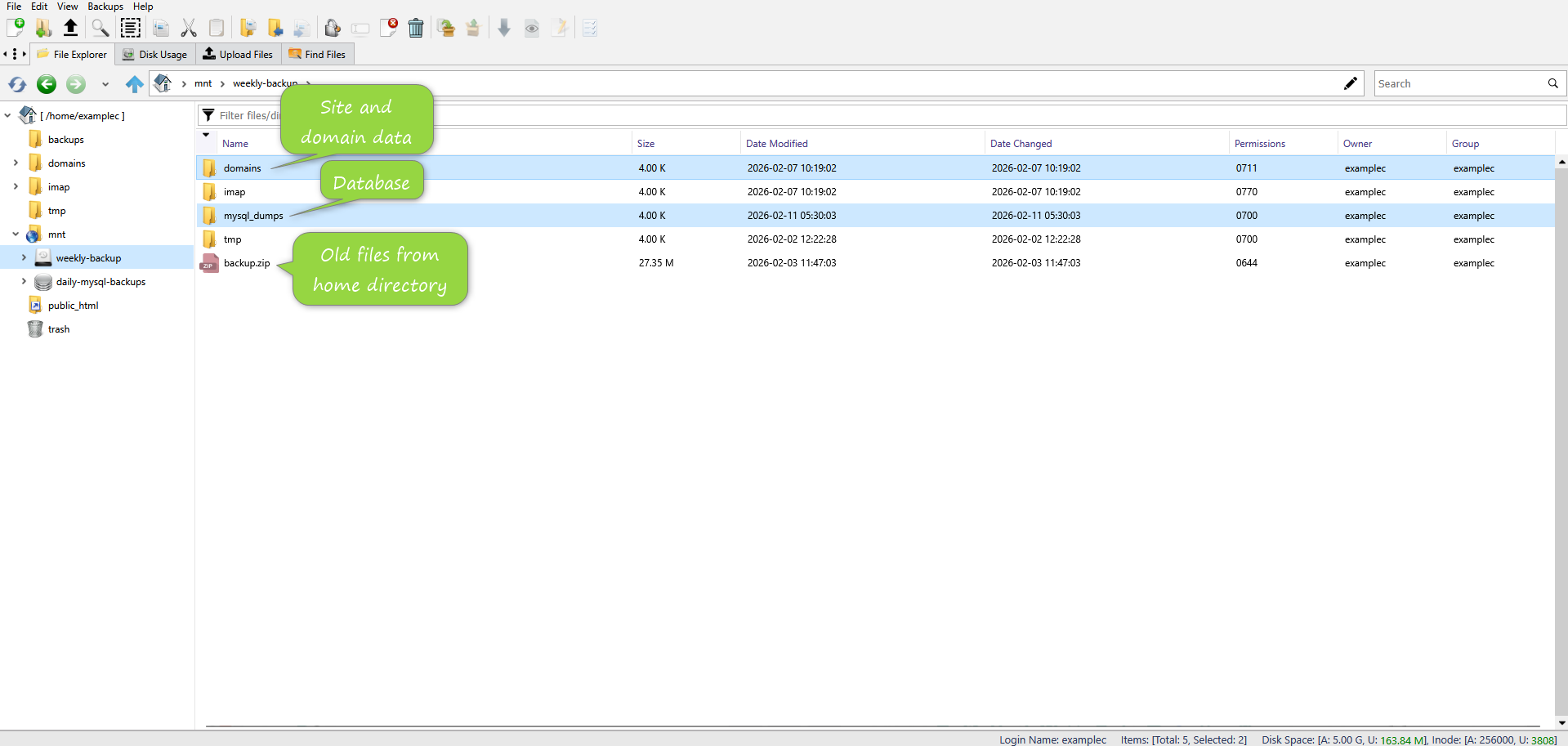
From here, you can recover:
- Files inside public_html
• Database dumps (located in mysql_dumps)
• Other home directory data
While it is technically possible to restore individual files, it is generally safer to restore complete directories to maintain consistency.
Important technical considerations:
- This interface operates within a live browser session.
• Closing the tab or browser during restoration may interrupt file operations.
• Large file transfers require patience; remain on the same tab until completion.
Interrupting the process can result in:
- Corrupted files
• Partial restorations
• Inconsistent site state
For best results, focus on restoring either:
- The full domain directory
• The mysql_dumps directory
Avoid mixing partial restorations unless absolutely necessary.
Step 3 (Restoring Backup Data)
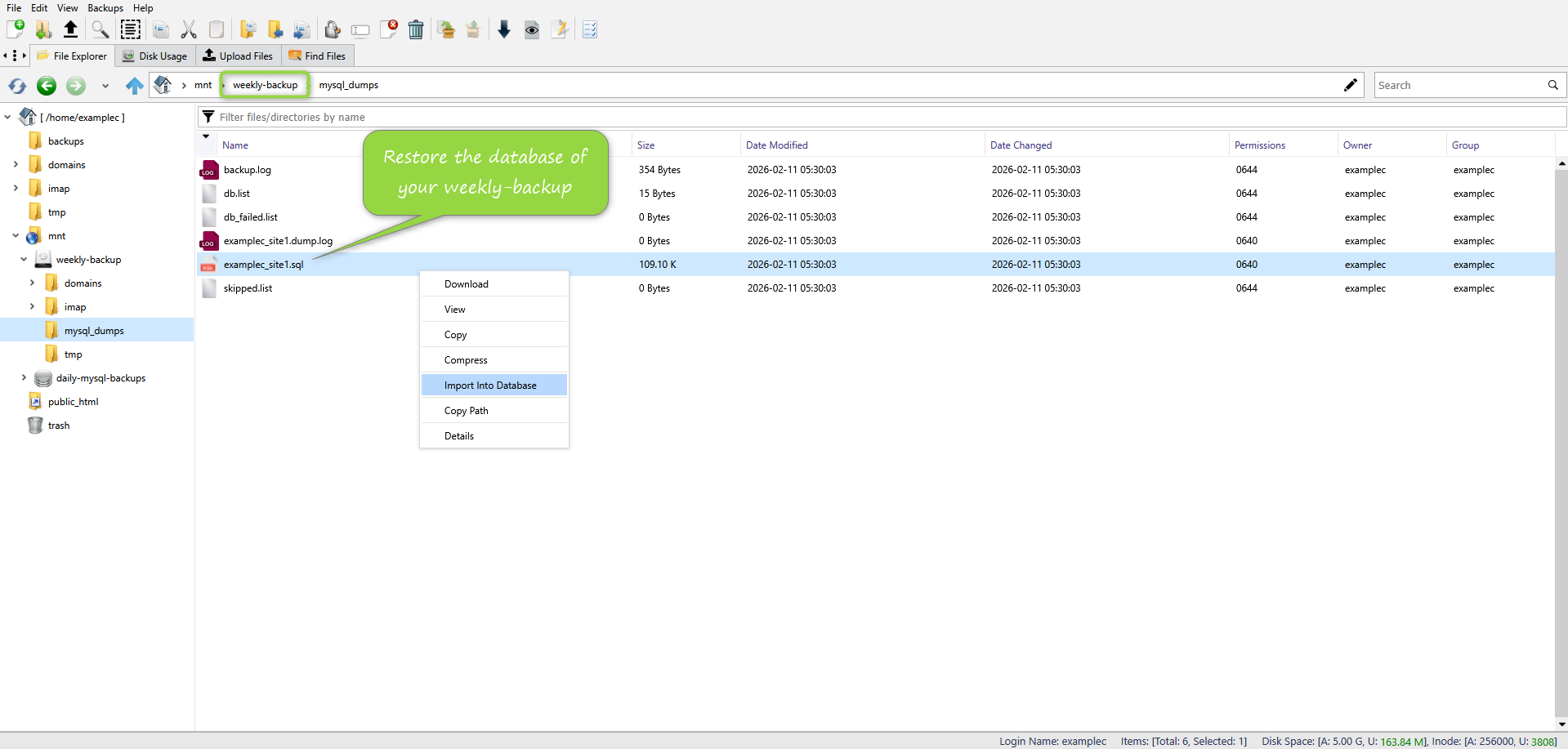
A) Restoring A Daily Database Backup
After entering the correct directory:
- Locate the .sql file corresponding to the desired backup.
- Right-click the file.
- Select the import option.
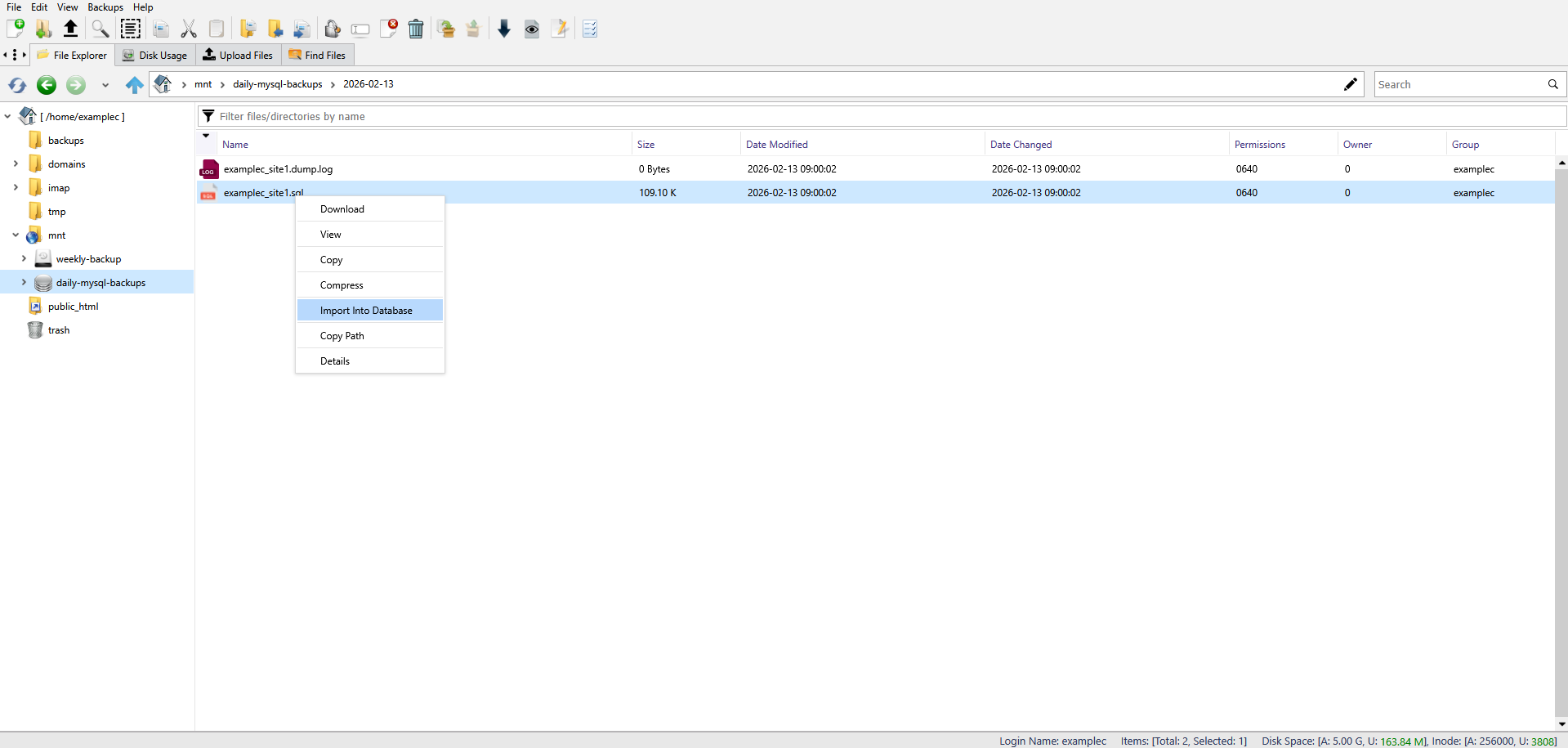
Before proceeding:
- Confirm the target database name.
• Ensure you are restoring to the correct database.
You may restore using:
- The existing database username and password
OR
• A new username and password by selecting “Use custom MySQL username/password”
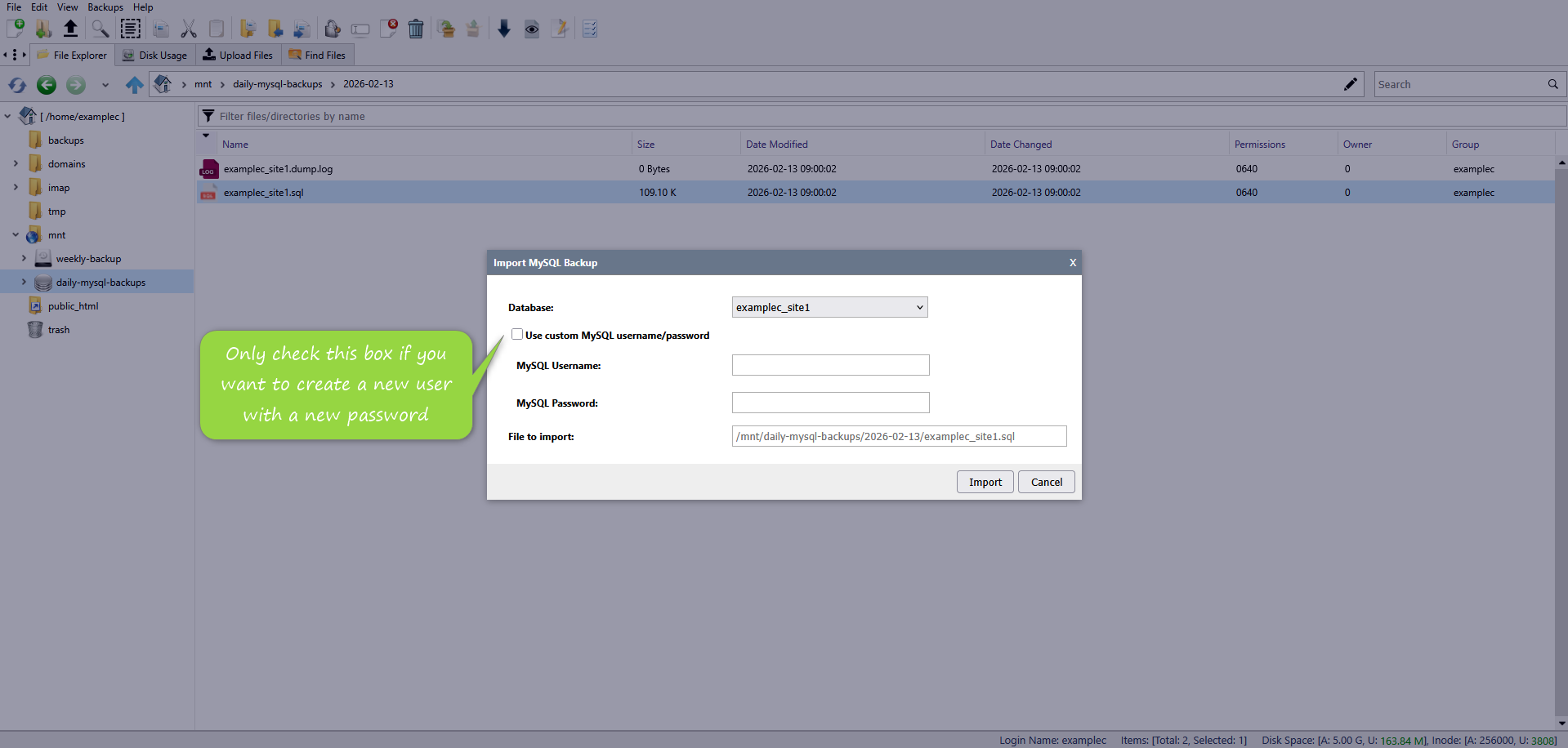
If you choose custom credentials, ensure that:
- The configuration file of your website (such as a config or environment file) is updated accordingly.
• Database host, username, password, and database name match exactly.
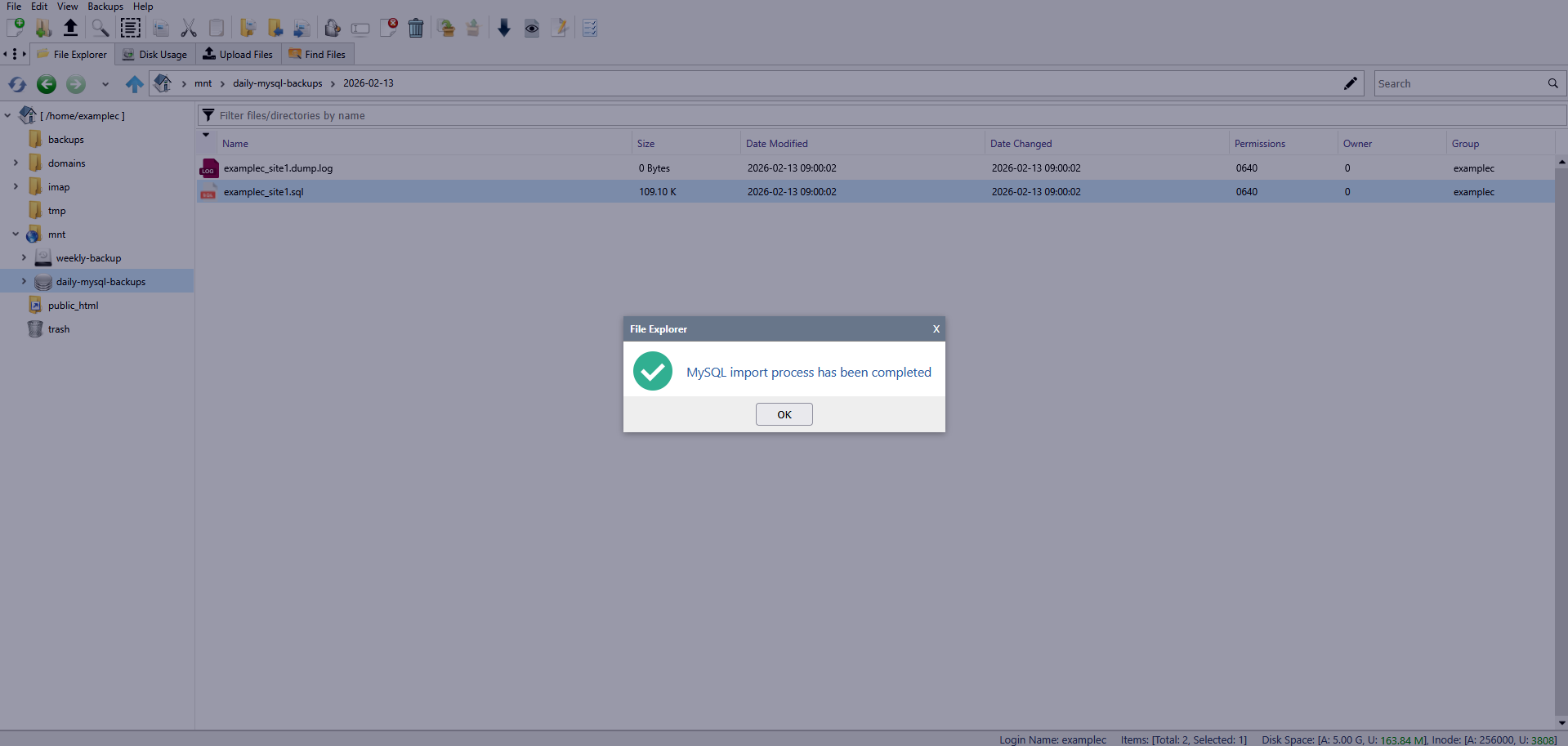
When you click import:
• The existing database content will be replaced by the backup file.
This operation is irreversible unless another backup exists.
B) Restoring Weekly Backup Data
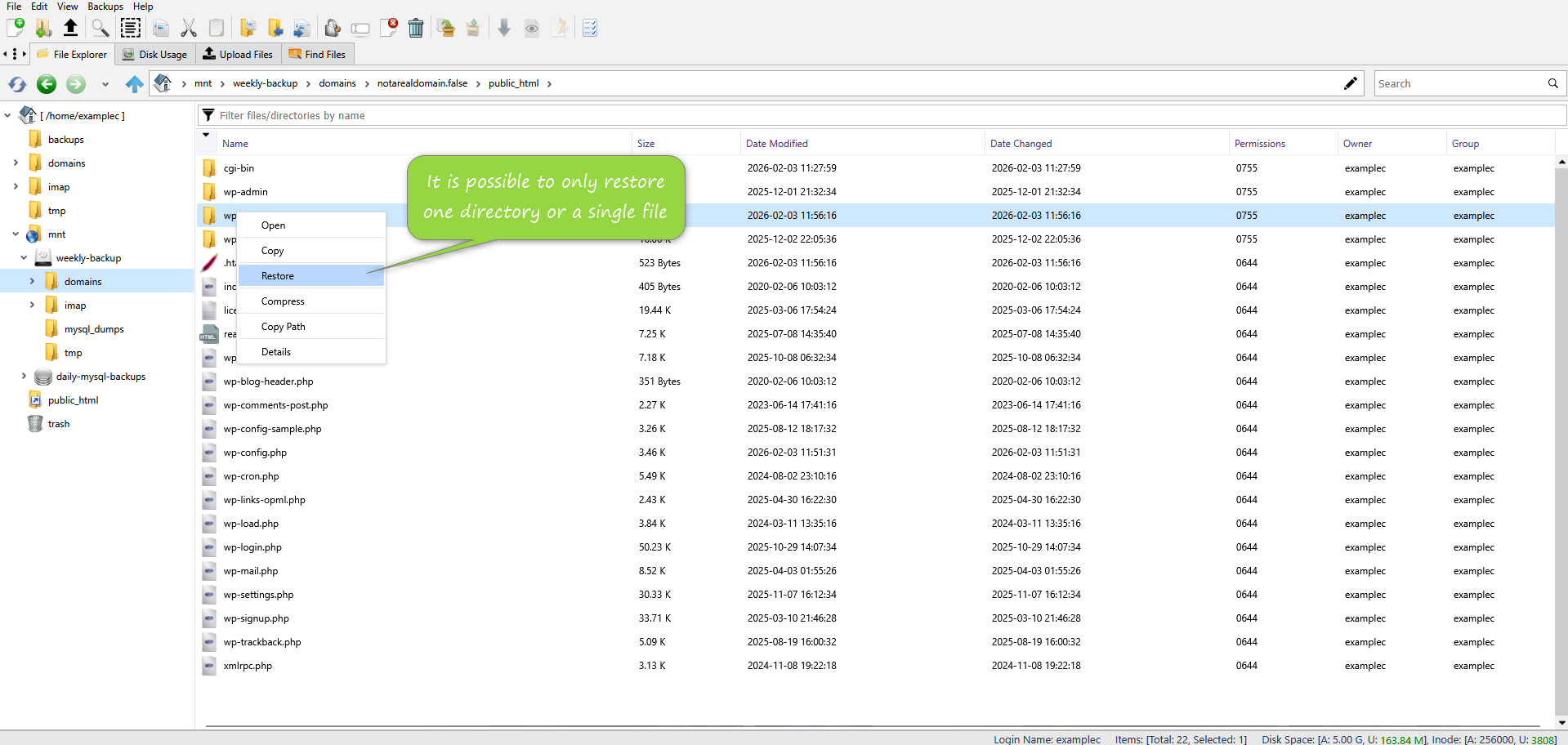
Restoring weekly backup data involves selecting specific files or directories.
You may restore:
- The entire public_html directory
• A specific folder
• A single file
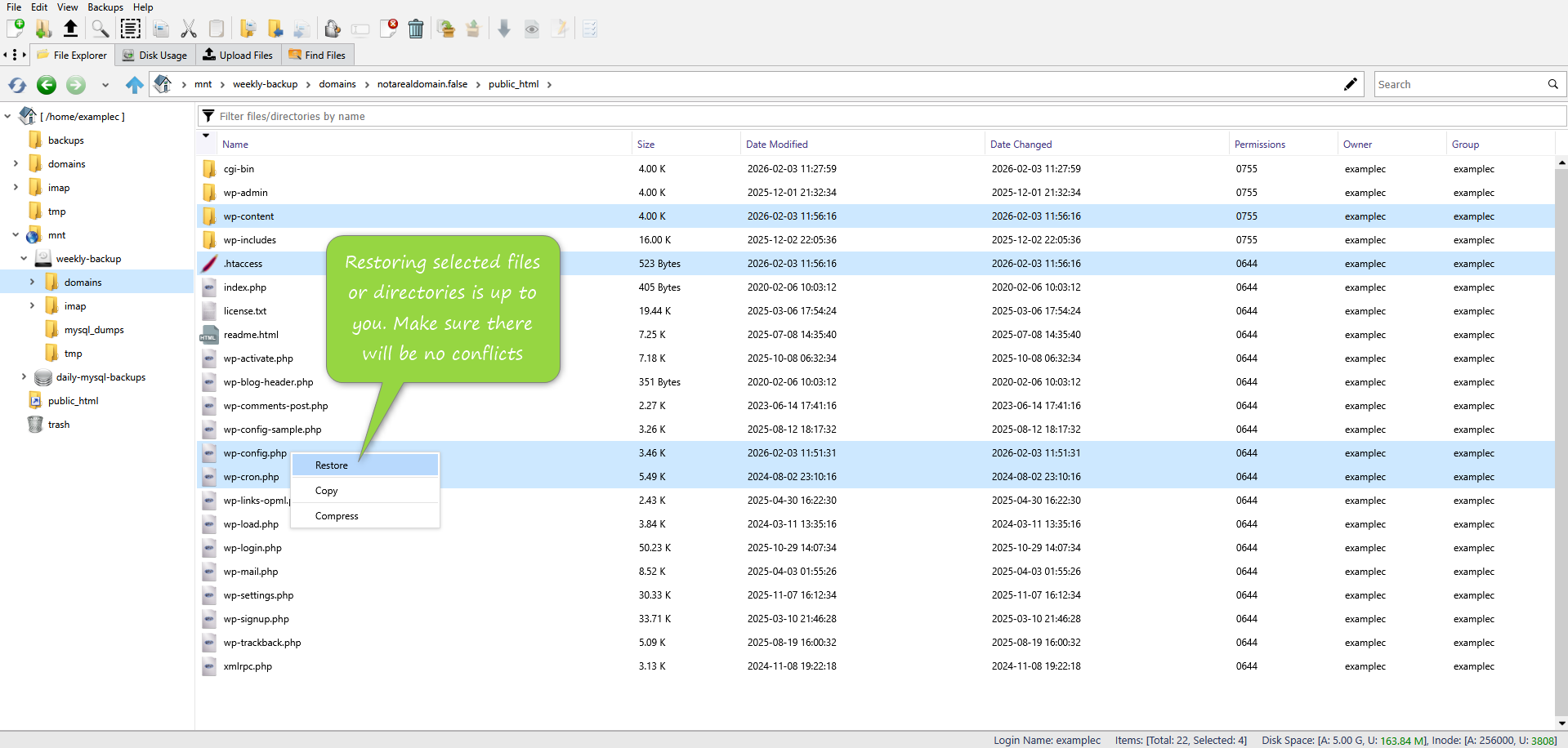
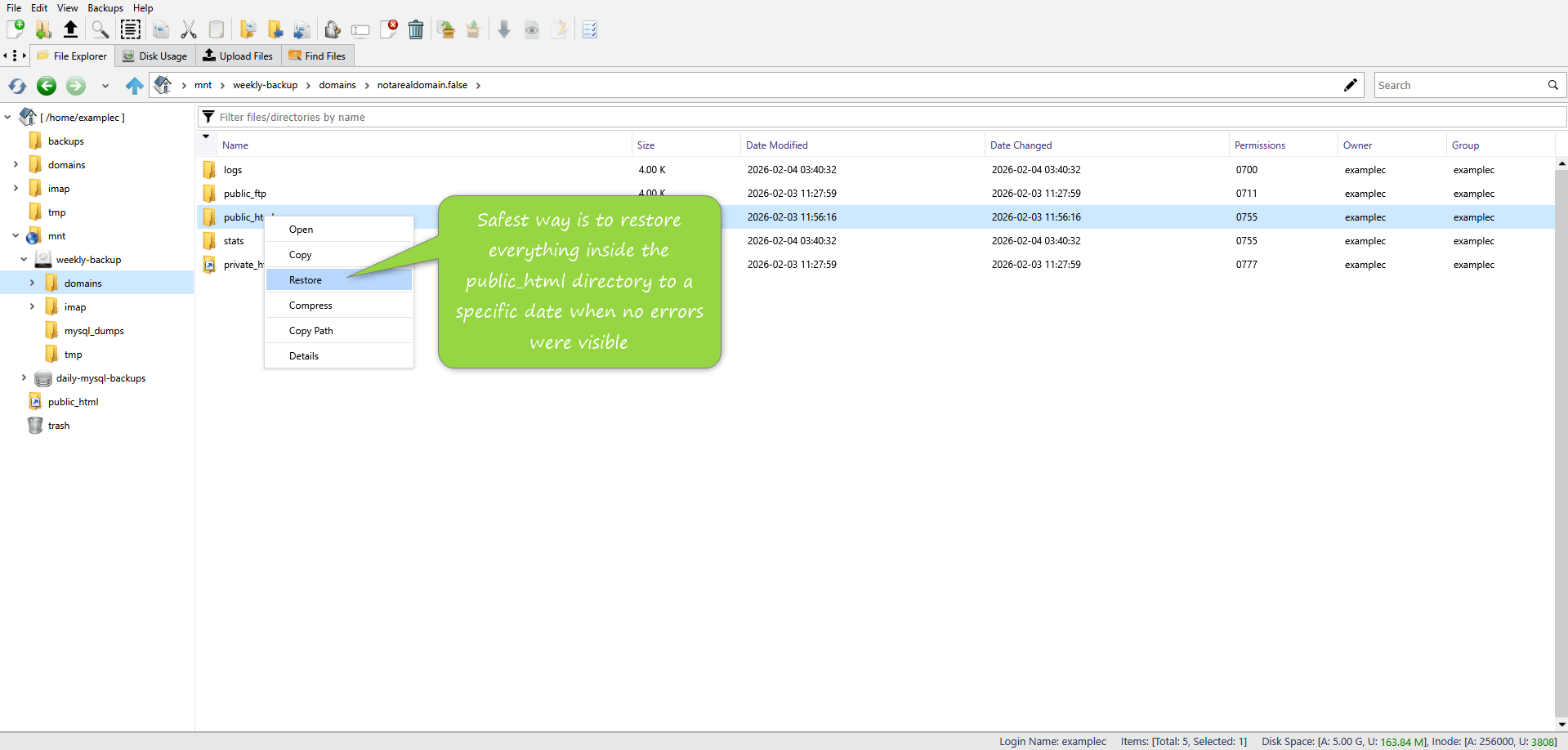
Although selective restoration is possible, in most cases it is technically safer to restore the entire snapshot from a specific date to avoid mismatched file/database structures.
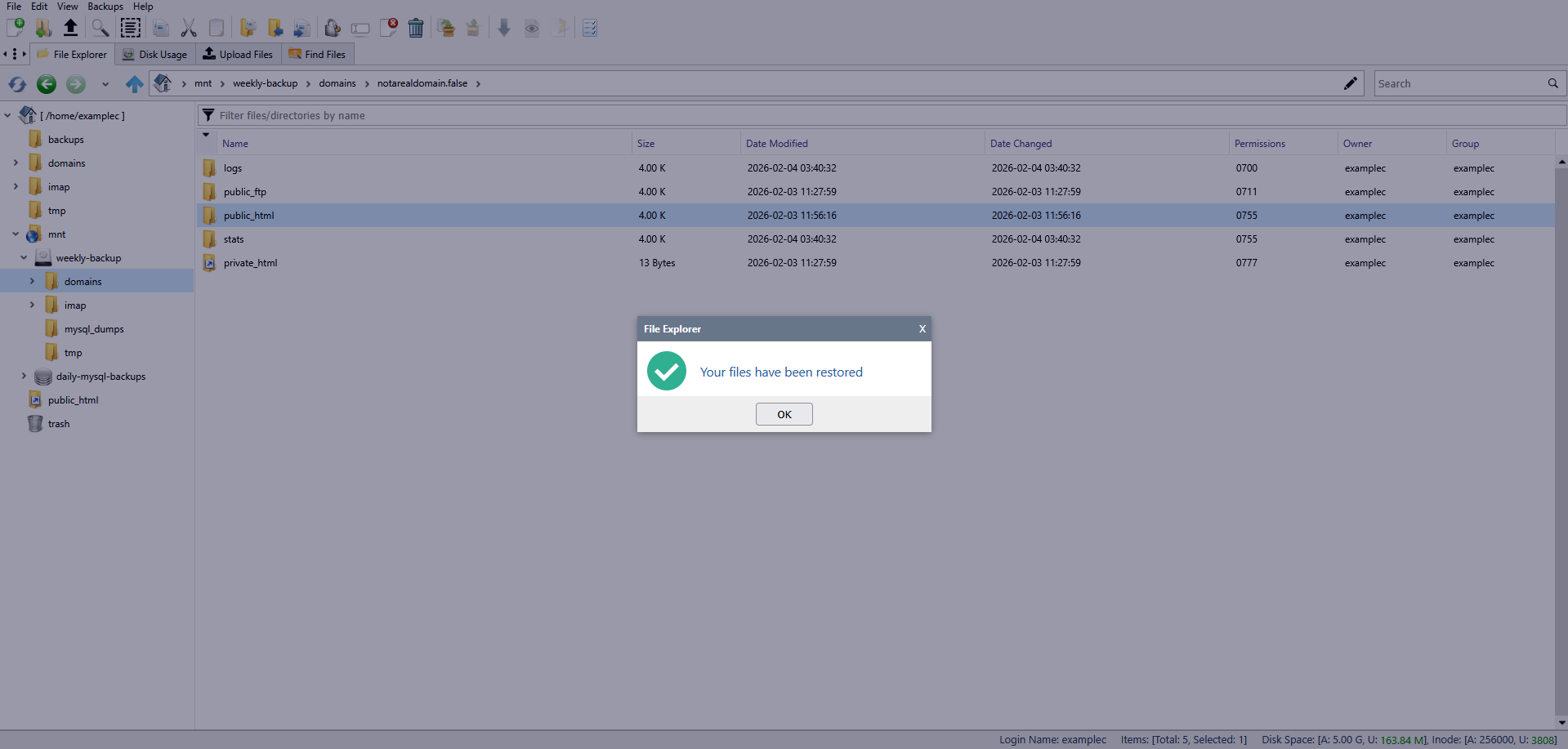
Once restoration is complete, a confirmation message will appear.
Hint: Always ensure that restored files and restored database content correspond to the same date to prevent structural conflicts.
This file is located inside the weekly-backup directory.
Step 4 (Check Your Site Data)
After restoration, verification is mandatory.
Even if restoration completes successfully, it does not guarantee operational correctness.
You should verify:
- Website accessibility
• Admin panel login
• User accounts
• Orders and transactions
• Plugins and themes
• File permissions
• Error logs
Keep in mind:
- Users banned after the backup date may be active again.
• Deleted content may reappear.
• Previously fixed errors may return.
• Plugins may revert to older versions.
• Security patches applied after the backup may be lost.
Carefully test all critical functionality before considering the process complete.
Final Recommendation
Backups are not a substitute for monitoring and proper site management. They are a recovery mechanism.
To reduce risk:
- Maintain your own external backups.
• Document major updates.
• Avoid partial restorations unless necessary.
• Always verify compatibility between files and the database.
When used properly, the AXSpace.com backup system provides a reliable recovery solution for both database-specific issues and full-site rollbacks.